How do I access this Learning Portal?
On your initial joining, click on the Learning Portal tab 

It will take you to a login page as shown on the left.
Enter your CGIAR email account, then click on “Reset Password” button, and wait a few minutes to receive an email with your new password. Repeat the above steps to login in, change password. Save and proceed to your learning dashboard.
This is a security measure; please comply, and change your password as per the parameters required.
Create a password that is easy for you to remember but difficult for hackers to guess. Use letters, numbers and special characters e.g. £$%
If you have your password sent to your inbox, login to the learning portal. This will send you again to a login page as shown on the left. Once you submit your credentials, it should take you to a change password page to enter a password of your choosing, then you will be able to login to the portal.
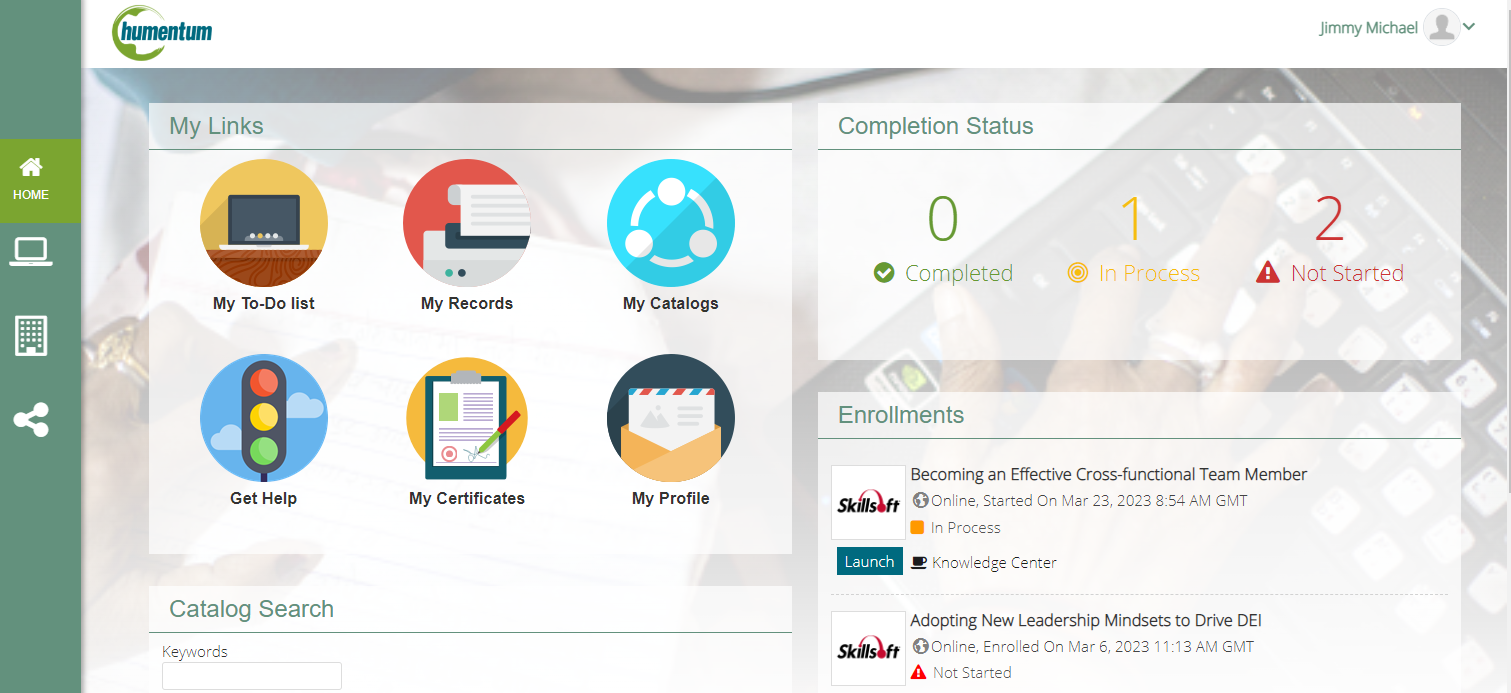
Learning Dashboard at a glance:
Home – This shows you quick links to most popular features such as;
- Enrolled courses completion status
- Enrollments
- Learning Records
- Certificates
Accessing the courses in the ICARDA Learning System
The system is set up in a simple intuitive way to enable you to access your learning with ease.
Where can I find courses to enroll in?

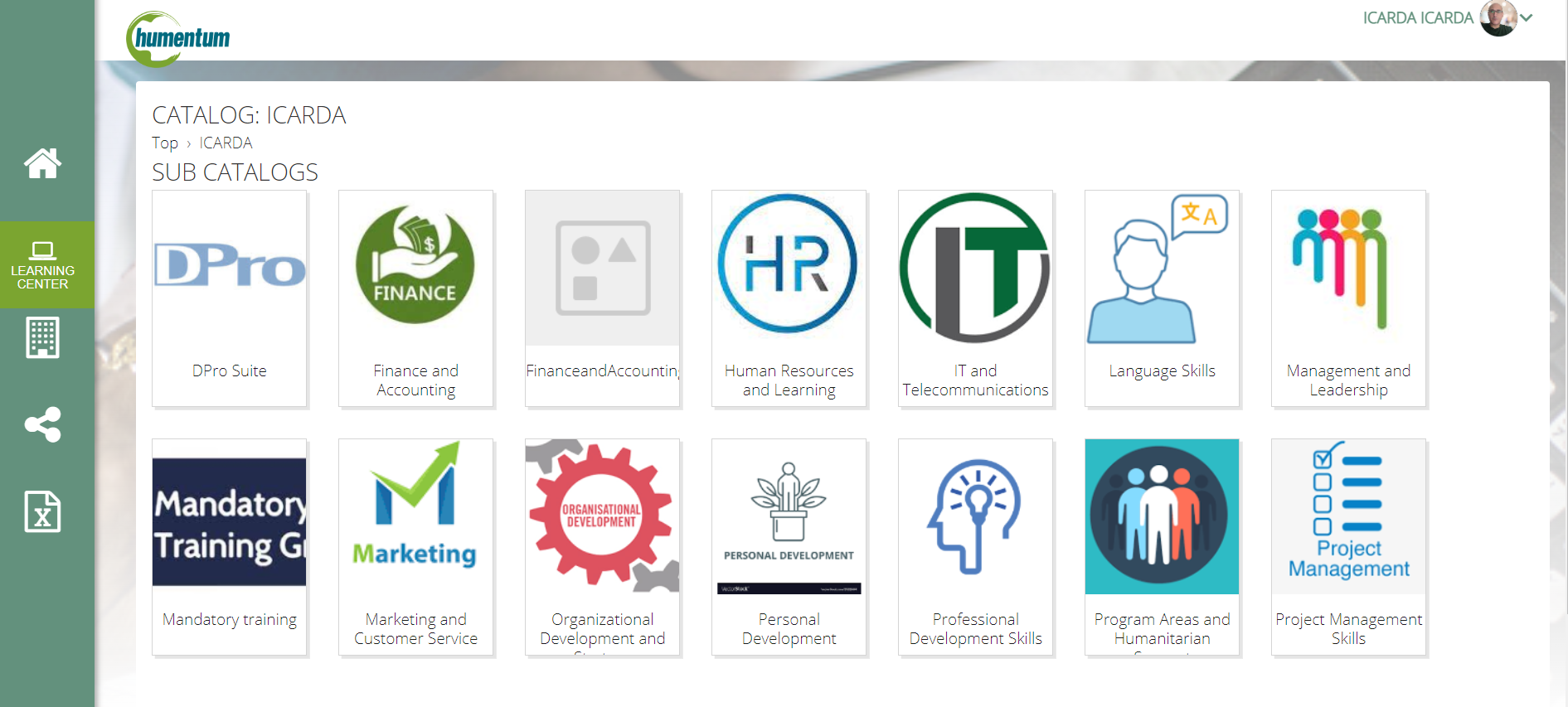
To access the catalog, and thereby access all the learning courses available, navigate to the learning center
Click on Learning Center tab on the left handside of the screen , then Catalog browser and click on the ICARDA catalog that will be displayed.
You will see various folders with different thematic areas. Click on the area of interest and browse the available courses and click on the desired course, follow the instructions displayed and click enroll.
Enrollment in a course
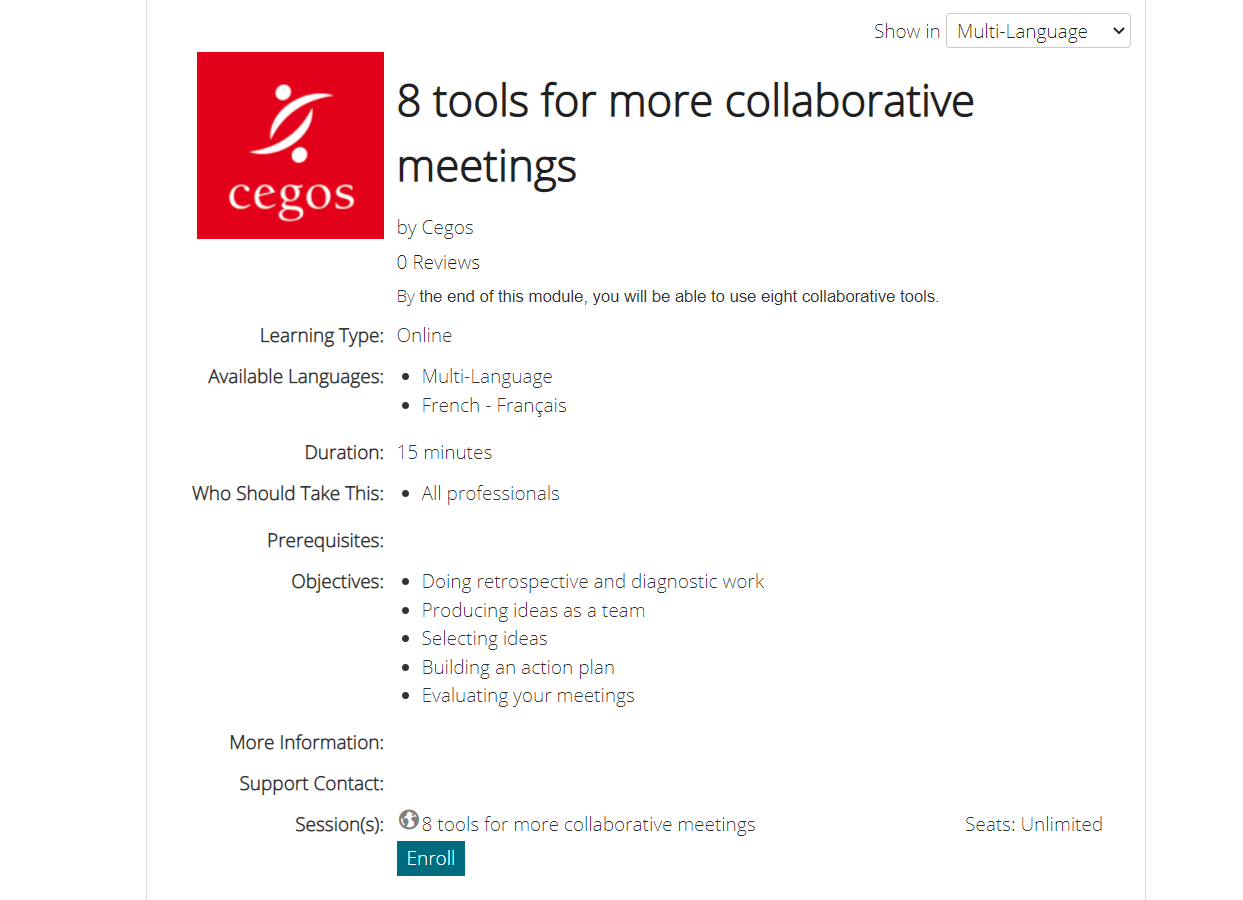
If you find a course you are interested in, click the Enroll Tab at the end of the course summary page as shown in the pic. below.
Your enrollment request will be shared with your approvers and once approved you will receive an email confirmation letting you know you have been enrolled, rejected etc. for the course.
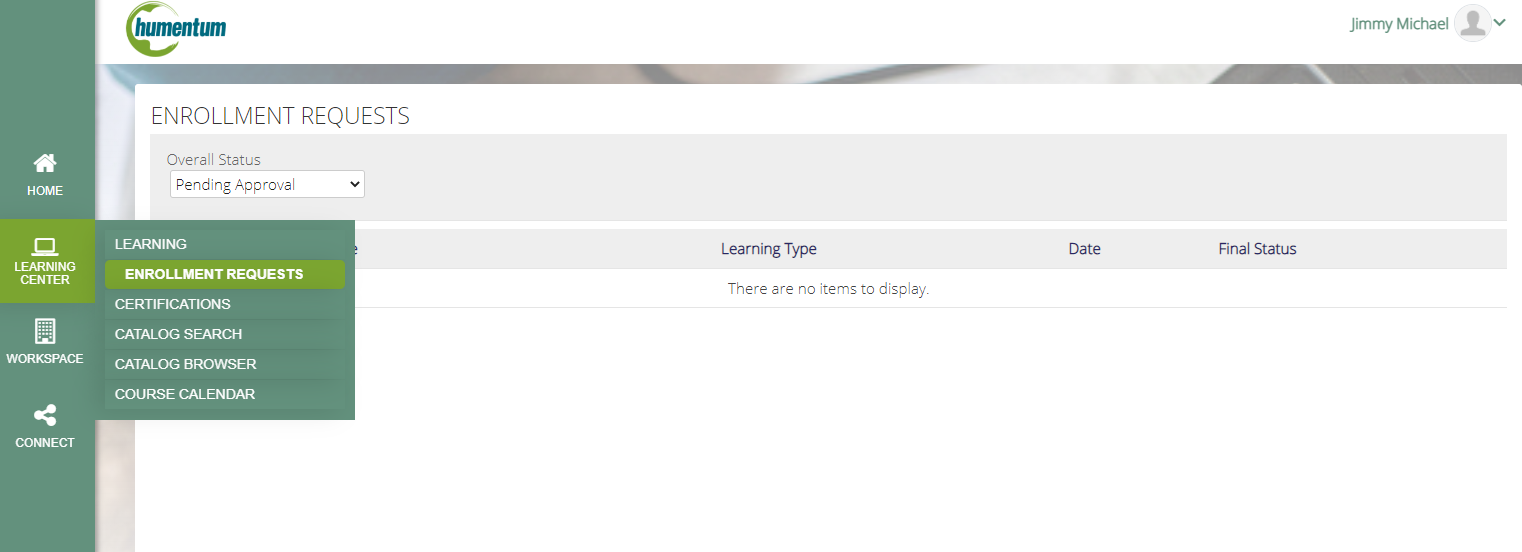
You can follow up on the status of the enrollment request through Learning Center as shown in the Pic below. Enrollment status for each course will also be visible in your Enrollments section on the home page.
Other features in the ICARDA LMS:
The pictures below show you other features of the LMS that you will find useful during your learning journey:
Certifications:
Whenever you receive a certificate for a completed course, you will be able to see it under the tab ‘certifications. For courses offered by other external providers, you will be able to import your certificate here.

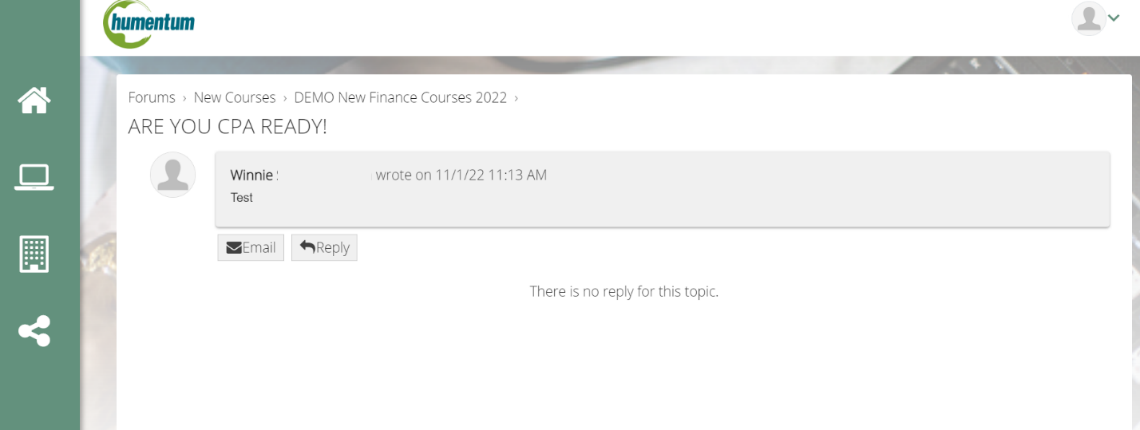
Connect – Forums
Under Connect you will be able to join forums set up by your learning instructors or admins. Here you will be able to link with other learners and discuss your learning under specified topics.
Under Learning Center
Here you will be able to track your learning and relevant records.
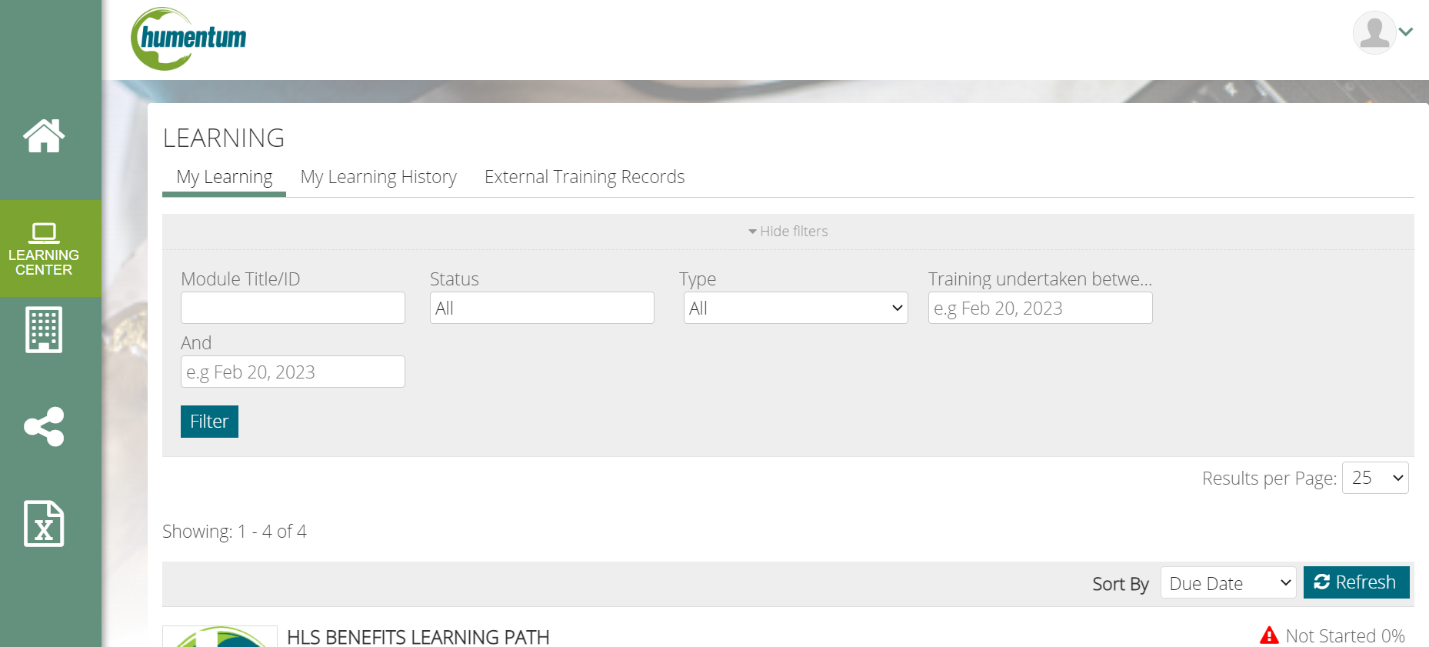
Note: There are some courses set up to require the learner to complete evaluations or tests before completing the course. To achieve 100% completion, make sure you have completed the course evaluations and tests. To check which areas are still pending under enrollments, click knowledge center to reveal the course modules. Under each module is ‘knowledge center’, click on this to display which module still has a pending aspect.
In case of any questions, please contact our learning systems administrators at (m.rustom@cgiar.org and j.halim@cgiar.org).
Happy Learning!!!